
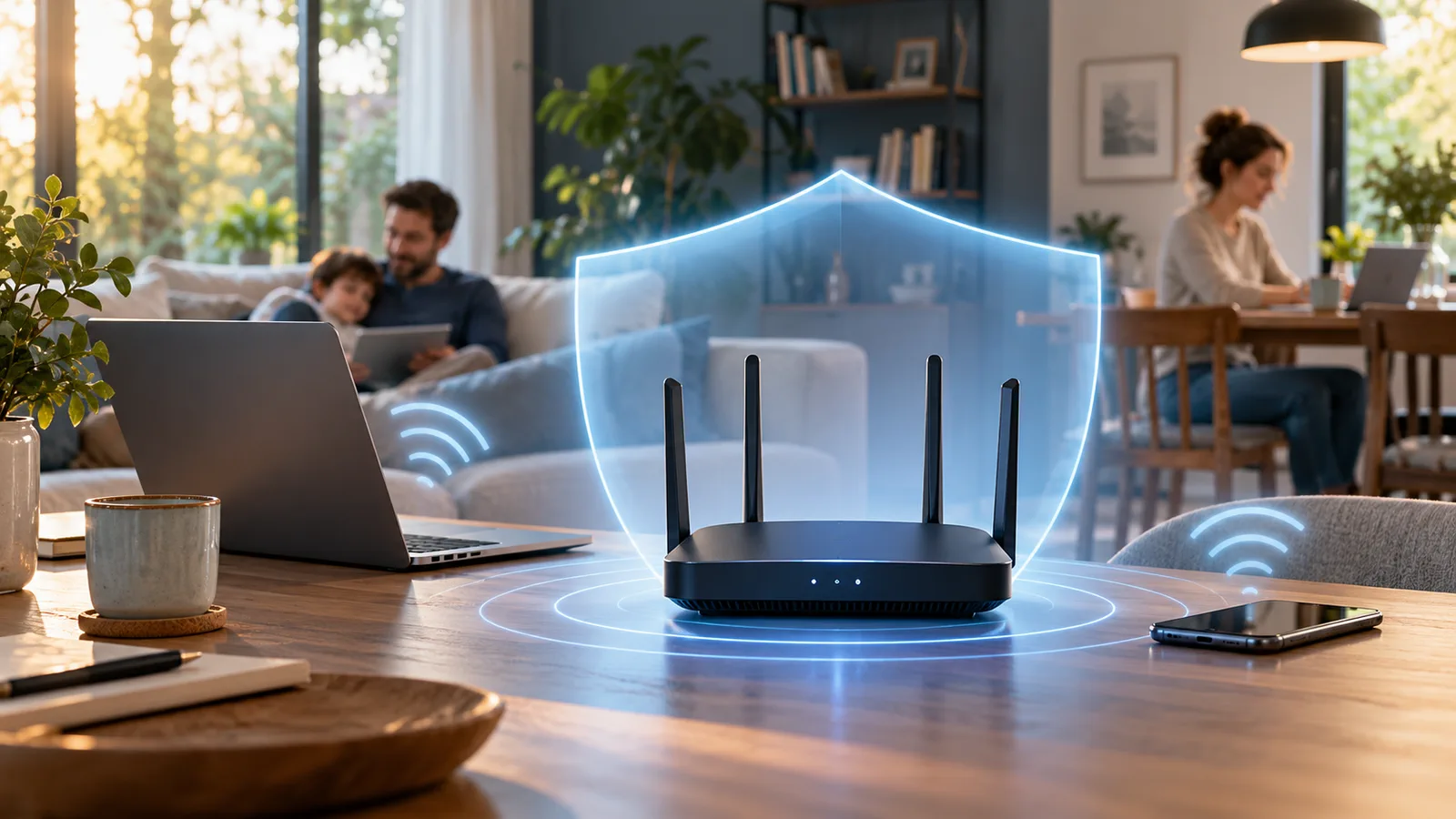
Securing a home router does not require mysterious settings. Start by changing default credentials, turning on modern Wi-Fi encryption and installing updates from the manufacturer or your internet provider. Menu names vary between routers and apps. If you cannot find a setting, check the manual for your exact model instead of enabling a similar-sounding feature.
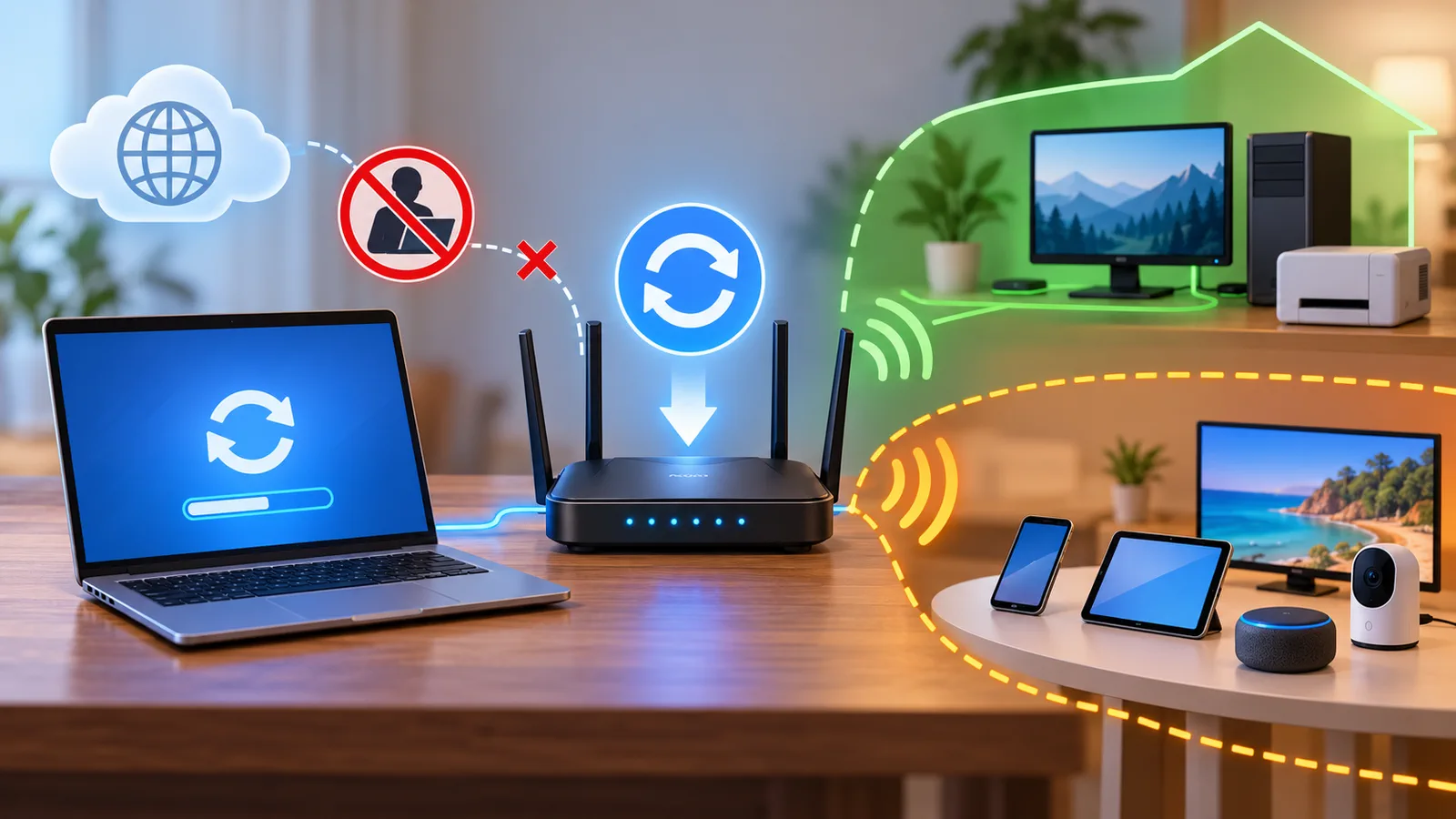
Update the firmware and app
Firmware is the software built into the router. Use its official app or administration page to check for updates. Some providers install them automatically; others ask you to start the update from the router interface or contact support. The FTC recommends checking with the manufacturer or internet provider for the procedure for your device. FTC advice for securing home Wi-Fi.
Before a major update, read the instructions and see whether the router recommends saving its configuration. Do not download firmware from unofficial sites or interrupt power while an update is installing.
Change both default passwords
The Wi-Fi password controls which devices can join the network. The administrator password protects the settings panel where you change network options. They are different credentials, and both should be replaced with strong, unique values. If the router lets you change the administrator username, avoid leaving the default one in place.
A long Wi-Fi password is easier to manage with a trusted password manager. Do not leave it somewhere visible from outside your home, and avoid sharing the main password with guests if your router offers a separate guest network.
Choose WPA3 or WPA2
In wireless security settings, select WPA3 Personal if the devices in your home support it. If it is not available, use WPA2 Personal with current settings; avoid WEP and older WPA modes. The FTC describes WPA3 as the newest generation and WPA2 as a suitable alternative where hardware does not support WPA3. If the router offers only outdated protocols, check for updates and consider replacing it. FTC guidance on Wi-Fi encryption.
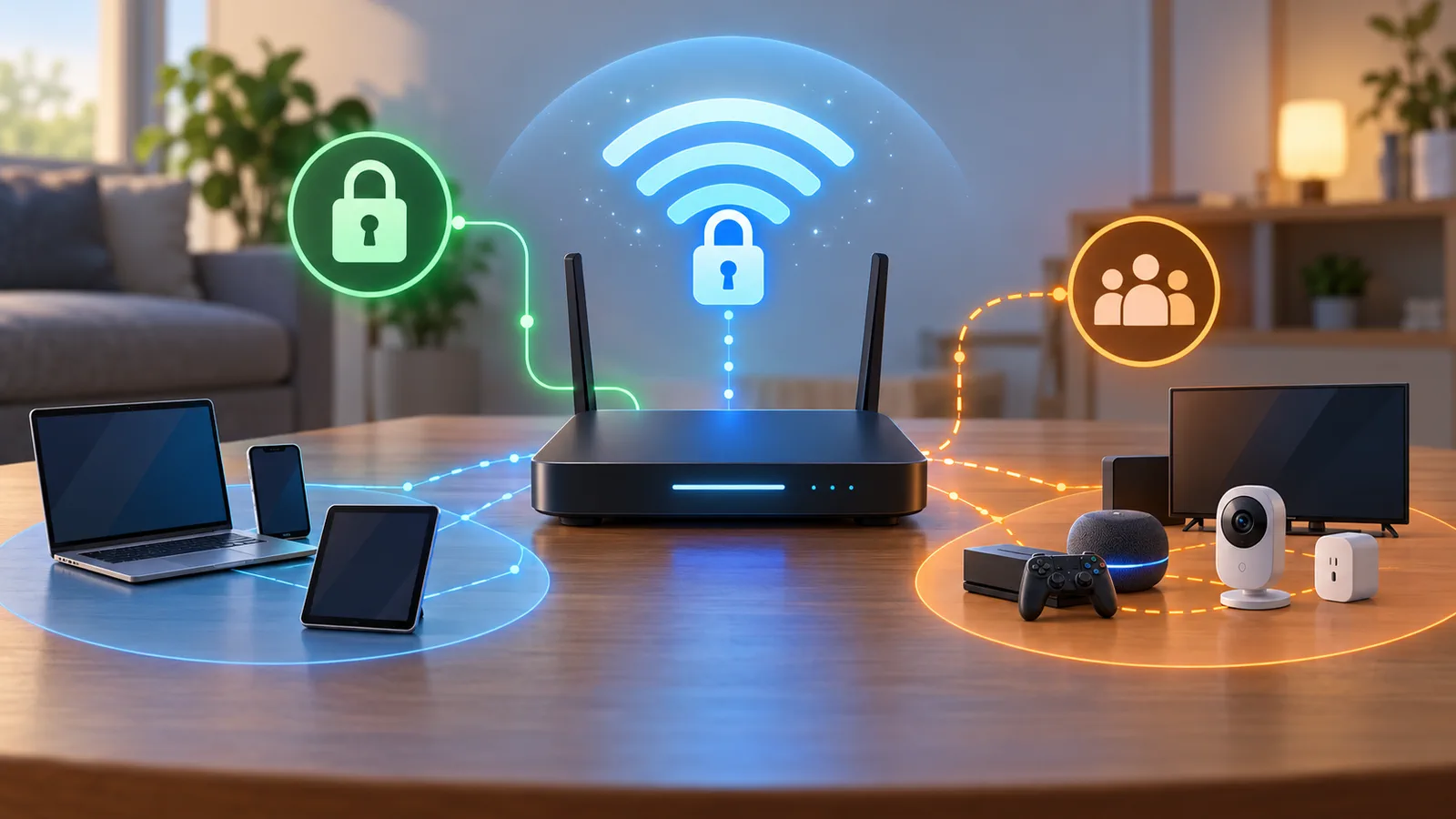
Menu labels vary: look for “security,” “encryption” or “wireless mode.” The options depend on the manufacturer, model and sometimes the Wi-Fi band.
Set up guest Wi-Fi
If friends or colleagues visit, guest Wi-Fi lets you avoid sharing the main password. Give it a separate name and password; where supported, limit guest devices’ access to devices on your private network. Guest settings are not the same across products. For example, Google Nest manages guest Wi-Fi in the Google Home app and lets you choose some shared devices. Those steps apply to that product, not to every router. Google Nest guest network guide.
Check remote access and features you do not use
Remote administration over the internet is convenient for support and managing a router away from home, but it also makes the settings panel reachable in more ways. If you do not need it, turn off “remote management” or the equivalent option. The FTC also advises considering whether to disable WPS and UPnP if you do not need them. Before changing those settings, check whether any home device or service depends on them. FTC home Wi-Fi guidance.
A simple final check
After changing settings, reconnect your phone and computer, confirm that internet access works, and store the new administrator credentials safely. If the router shows connected devices, investigate names you do not recognize before removing anything: a legitimate home device may use a generic label.
For related reading, see the computer security guide and the comparison of Wi-Fi generations.
Router settings vary. If you cannot find an option or are unsure whether disabling it would break a service, check the manual for your exact model or ask your internet provider before changing advanced settings.


Comments
Comments
Join the discussion respectfully: reasoned criticism is welcome; avoid threats, abuse, personal data and promotional links.
To join the discussion, you'll need to sign in with your WordPress.com account. This feature will be available when the site launches.