

You do not need to start with an expensive security suite to protect a computer. Update the operating system and apps, keep built-in protection enabled, use a different password for every account and make backups you know how to restore. These habits work best when they become routine.
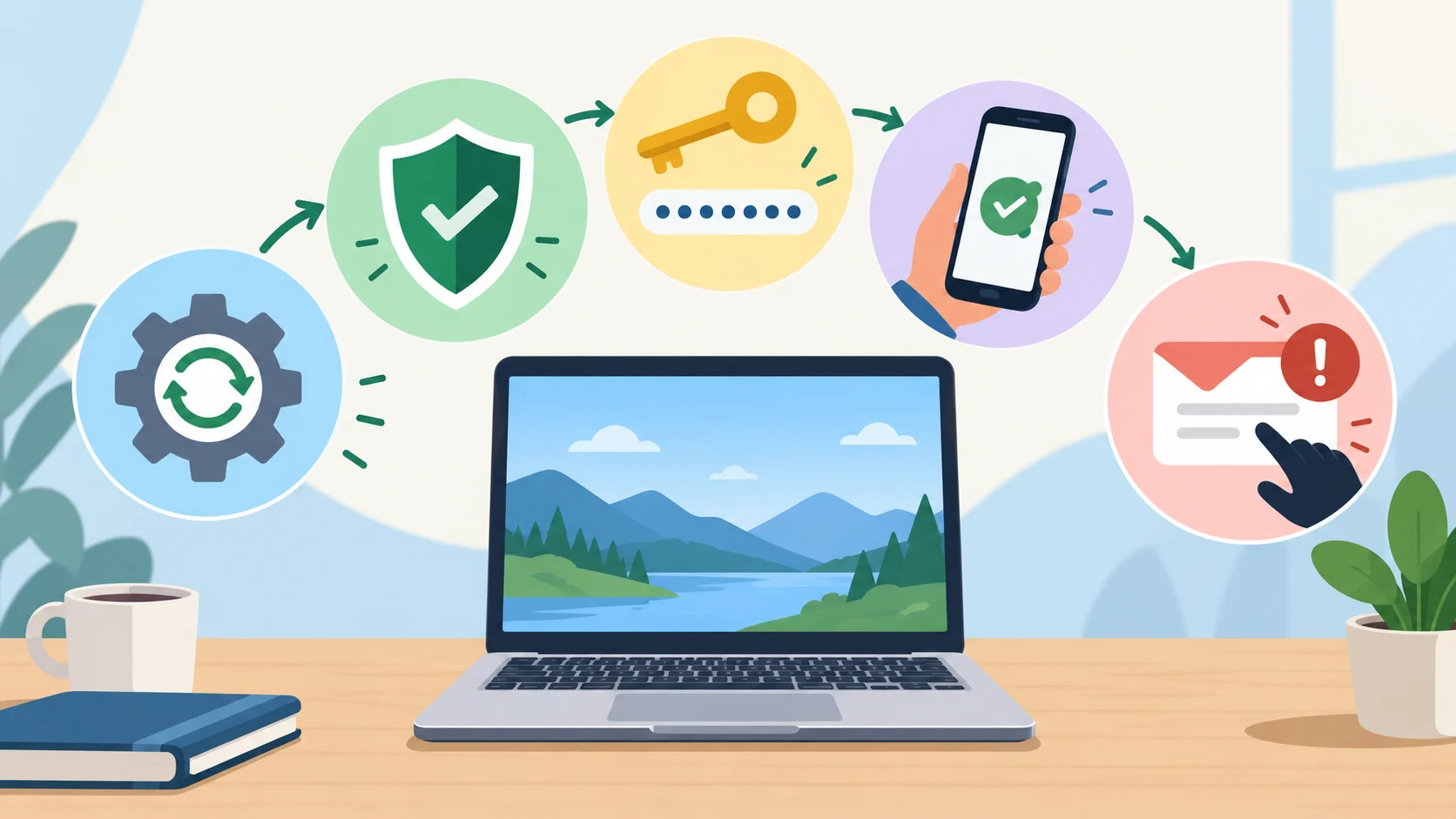
1. Install operating-system and app updates
Updates fix problems and close known vulnerabilities. On Windows, check Settings > Windows Update; on a Mac, open System Settings > General > Software Update. Turn on automatic updates when practical, then check occasionally for failed installs or pending restarts. Update browsers, applications and the firmware of devices used to browse or store files too (Microsoft, Apple).
The operating-system version matters as much as the latest patch. Standard support for Windows 10 ended on 14 October 2025. The Extended Security Updates programme can provide security updates to eligible enrolled devices. If you still use Windows 10, check your edition and whether it is enrolled in ESU; otherwise consider moving to a supported system if your hardware allows it (Microsoft — Windows release information).
2. Keep built-in security enabled
On Windows, the Windows Security app includes Microsoft Defender Antivirus and the firewall. Check that real-time protection is on and security intelligence is arriving through Windows Update. If you install another antivirus product, check which provider is actually active; Defender may change state when another compatible product is present (Microsoft — Windows Security, Microsoft — Defender FAQ).
macOS includes built-in protections, including XProtect, which detects and blocks known malware. Keep macOS and its security files updated, and download apps from trusted sources. No antivirus removes every risk, so it still matters what you open and approve (Apple — malware protection in macOS).
3. Protect accounts with unique passwords and MFA
Do not reuse one password for email, banking, social networks and work accounts. If one credential leaks, the others then remain separate. A password manager can create and store different passwords; NIST advises protecting it with a long passphrase and, when available, multi-factor authentication. See our guide to password managers for more detail.
Turn on MFA (multi-factor authentication) especially for email, financial accounts and cloud storage. If a service offers passkeys or an authenticator app, choose an option that suits your devices and keep recovery codes somewhere safe. For Microsoft accounts, two-step verification can ask for a second proof, such as a code or authenticator app, when you sign in from an untrusted device; check that your recovery methods are up to date too (Microsoft — two-step verification).
4. Pause before opening unexpected links or files
An urgent message, an unexpected refund or a request for your password may be phishing. Before clicking, check the sender’s domain and the link destination. For a payment or account request, open the service by typing its address yourself or using its official app. Do not open links or attachments you were not expecting, even if they appear to come from someone you trust (Microsoft — protect yourself from online scams). Do not enable macros or install software just because a pop-up tells you to.
5. Back up files and test recovery
Do not rely on synchronisation alone for important files: keep copies you can restore and occasionally test a recovery. In Windows, File History can save copies to an external drive or network location (Microsoft — Windows backup and recovery). For a deeper look at backup copies and recovery checks, read our guide to the 3-2-1 backup rule.

A quick check to do today
- Open Windows Update or Software Update and look for errors.
- Check that real-time protection and the firewall are enabled.
- Replace reused passwords, starting with your primary email account.
- Turn on MFA for accounts containing important information or payment methods.
- Check when your last backup ran and restore a non-essential file as a test.
These steps reduce exposure to common problems, but they are not a substitute for a security plan designed for professional, business or regulated needs.
Sources
- Microsoft — install Windows updates
- Microsoft — Windows Security
- Microsoft — two-step verification
- Microsoft — protect yourself from online scams
- Microsoft — Windows backup and recovery
- Microsoft — Windows release information
- Apple — software updates on Mac
- Apple — malware protection in macOS
- NIST — guidance on password managers



Comments
Comments
Join the discussion respectfully: reasoned criticism is welcome; avoid threats, abuse, personal data and promotional links.
To join the discussion, you'll need to sign in with your WordPress.com account. This feature will be available when the site launches.