
How a password vault helps
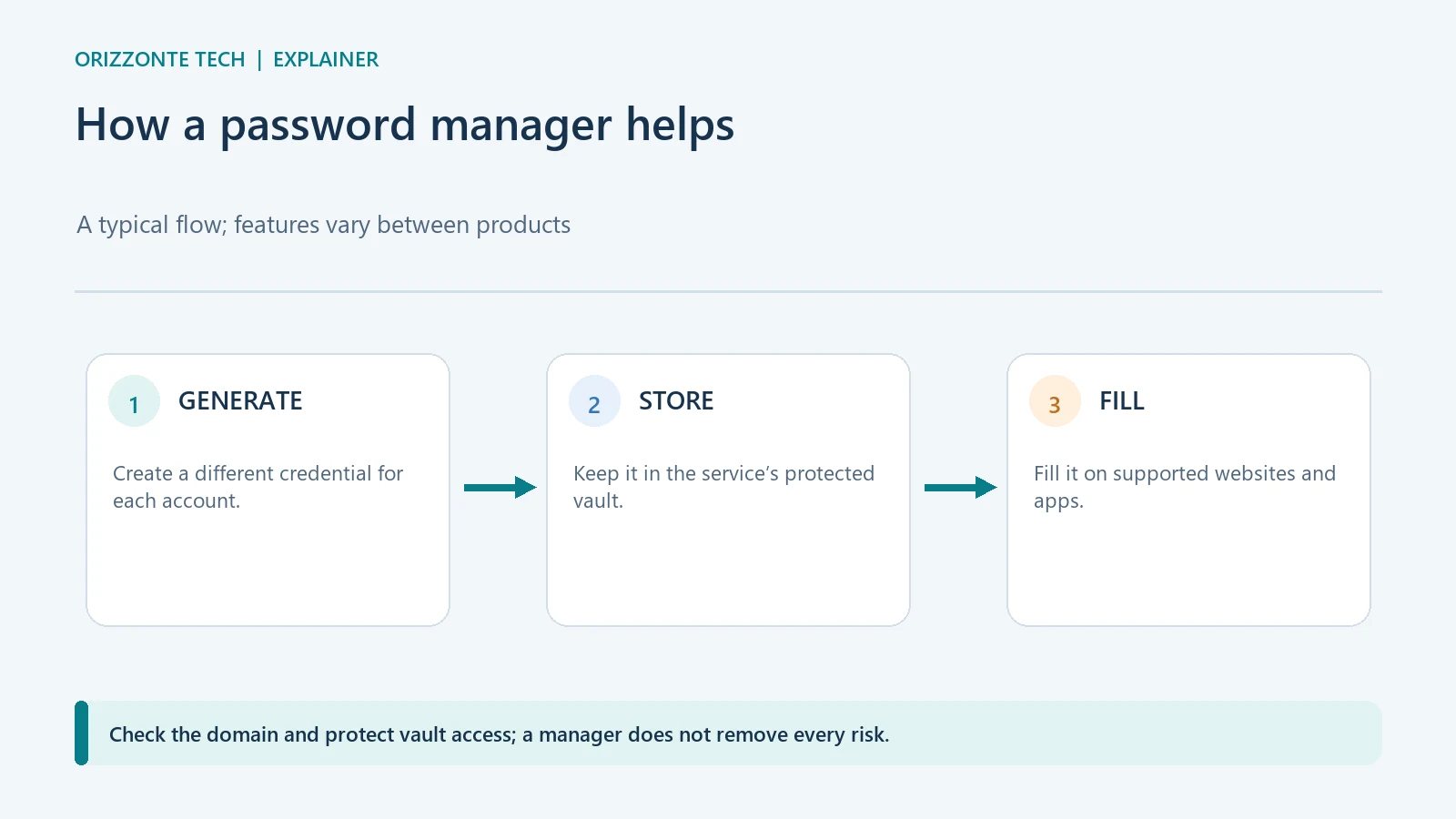
A password manager stores credentials in a vault and can generate different, hard-to-guess passwords for each account. That means you do not have to reuse one password or remember every one. The right choice depends mainly on how you protect the primary sign-in, how you recover the vault, and which devices and services you use.
What a password manager does
A manager can create a random password, save it and fill it in when you sign in to a website or app. Some tools are built into operating systems and browsers; others are standalone services. Features such as syncing, sharing, exposed-credential alerts, passkeys and recovery vary by product. Check the service’s documentation instead of assuming every tool includes them.
Vault protection matters because it concentrates many credentials in one place. CISA recommends long, unique passwords and using multifactor authentication when it is available. MFA adds another check beyond the password; the methods and vault protections depend on the password manager you choose.
What to check before choosing
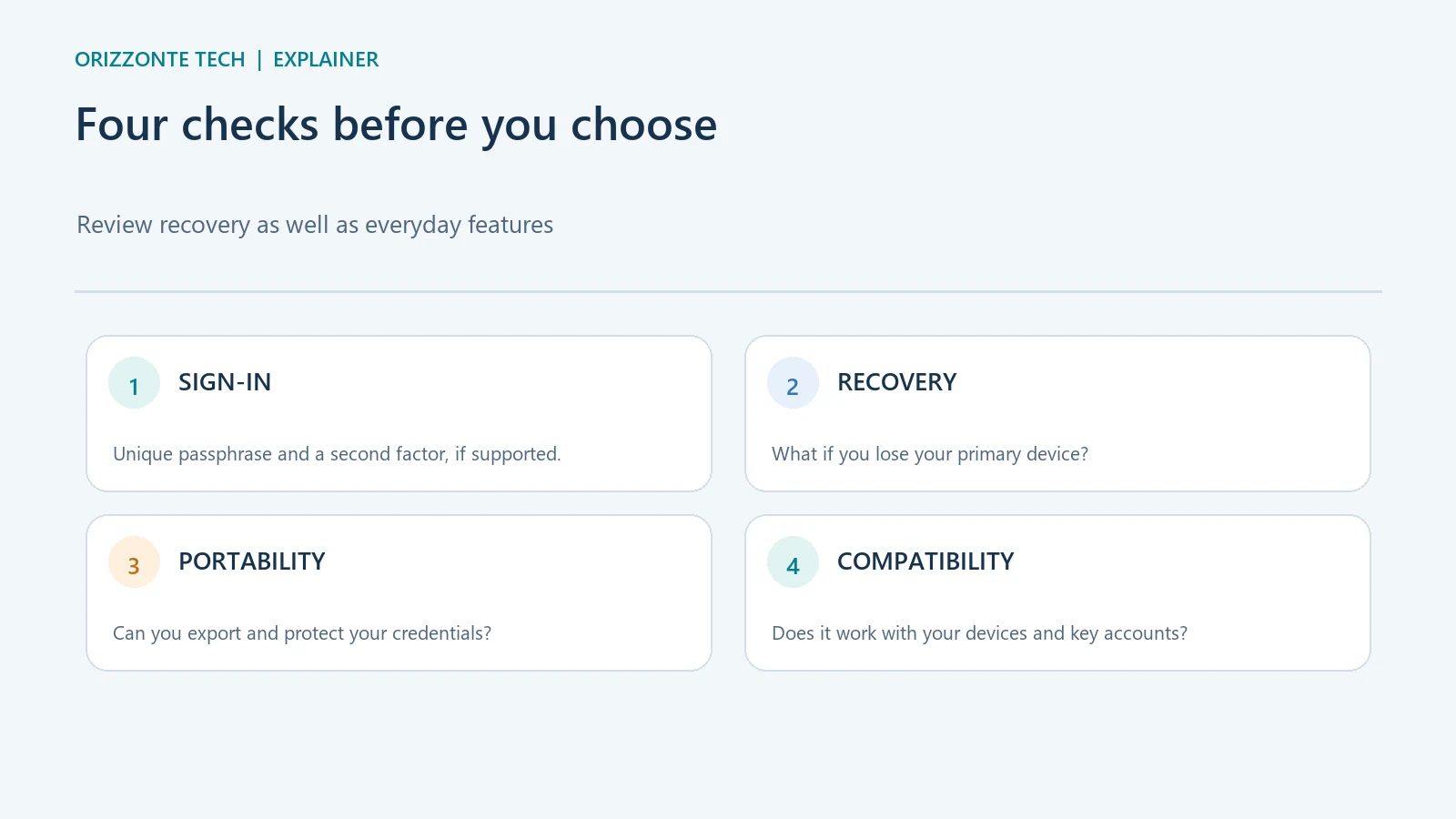
Before moving all your credentials, review five areas:
- Compatibility: the browsers, phones and computers you use; whether essential functions work offline.
- Sign-in and recovery: what happens if you lose the main device or forget the vault password; which keys or codes must be stored separately.
- Account security: support for MFA or passkeys, update practices, data-handling documentation and available alerts.
- Portability: whether credentials can be exported in a readable format, how to protect the file and how to delete it afterwards.
- Features you will use: autofill, controlled sharing, secure notes or passkey management, if needed.
These are evaluation criteria, not a security certification. A feature advertised by a provider should be checked in the settings and documentation for the version you use.
A careful way to get started
Install or enable the manager through the official system or provider channel. Set a primary password that you do not use elsewhere, and keep recovery information in a separate, protected place. If available, enable a second factor that does not depend solely on the same device that contains the vault.
Import your credentials and gradually replace reused or weak passwords with unique ones generated by the manager. For accounts that support them, consider a passkey using that service’s specific instructions. Before deleting an export or turning off the old tool, check that key sign-ins and recovery work.
Limits to keep in mind
A manager cannot secure an already compromised device or prevent every scam. Losing primary access, unclear recovery steps or an unprotected export can create problems. A stored password does not prove a website is genuine: check the domain before signing in or approving a request.
Sources
- CISA — password and password-manager tips.
- CISA — MFA quick-start tip sheet — describes multifactor authentication as an extra layer of account security.
- Google Password Manager — information and controls.
- Apple Passwords — use the Passwords app.
Sources checked on 29 October 2026. No product was tested or recommended; the inline images are editorial diagrams.



Comments
Comments
Join the discussion respectfully: reasoned criticism is welcome; avoid threats, abuse, personal data and promotional links.
To join the discussion, you'll need to sign in with your WordPress.com account. This feature will be available when the site launches.