
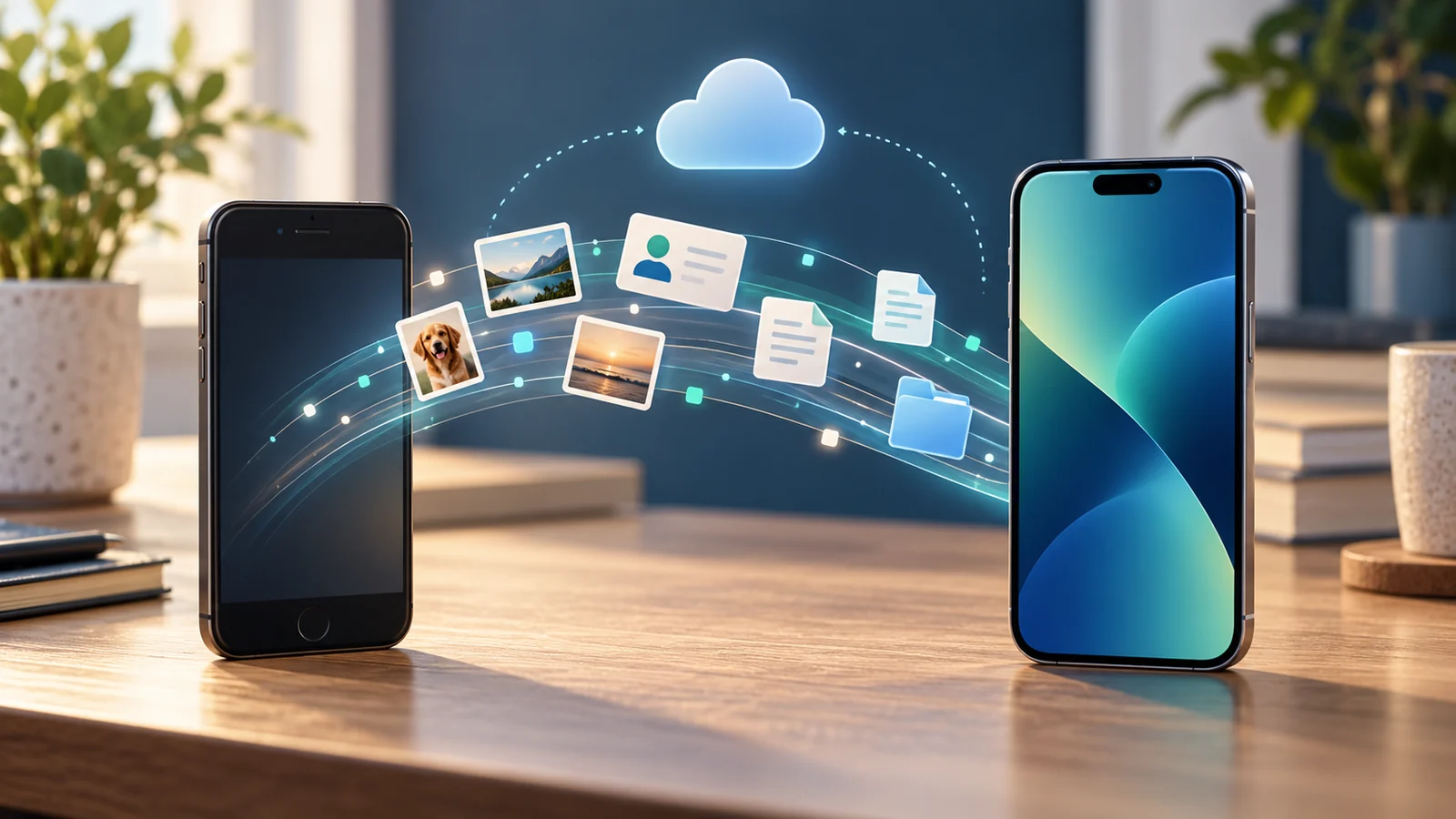
A new phone does not automatically bring every app, file and conversation with it. What moves depends on the operating systems, device models, software versions and individual apps. Check the backup and prepare your sign-ins first, then verify important data on the new phone before erasing the old one.
Before you transfer: prepare both phones
Charge both devices, update them if possible and check that the new phone has enough storage. Keep your Google or Apple account password, unlock code and key app credentials available. A stable Wi-Fi connection may be needed, and photos or apps can continue restoring in the background after initial setup.
On the phone you are replacing, check when the last backup completed and which data it includes. A successful device backup does not guarantee that every app stores its own data there: some apps sync online, some use a separate transfer process, and others do not restore local data. Our guide to the 3-2-1 backup rule and restore checks explains why a backup should be verified.
Make a note of items that are not always copied automatically: downloads, hidden folders, recordings, documents outside cloud services, protected content and authenticator data. Never share one-time sign-in codes or passwords with someone helping you.
Android to Android
Android’s setup flow can copy data by cable or wirelessly; the available choices depend on the device and software version. Google recommends keeping the phones close, following the initial setup prompts and selecting the data you want to copy. If you use a cable, make sure it supports data transfer, since some cables only charge.
Do not assume that everything will move. Google lists possible exclusions such as downloads, files in hidden folders, apps installed outside Google Play and data from apps that do not support backup or restore. Non-Google accounts and device-specific settings may require separate sign-in. For WhatsApp chats, create or check the backup required by the app on the old phone before starting the move.
iPhone to iPhone
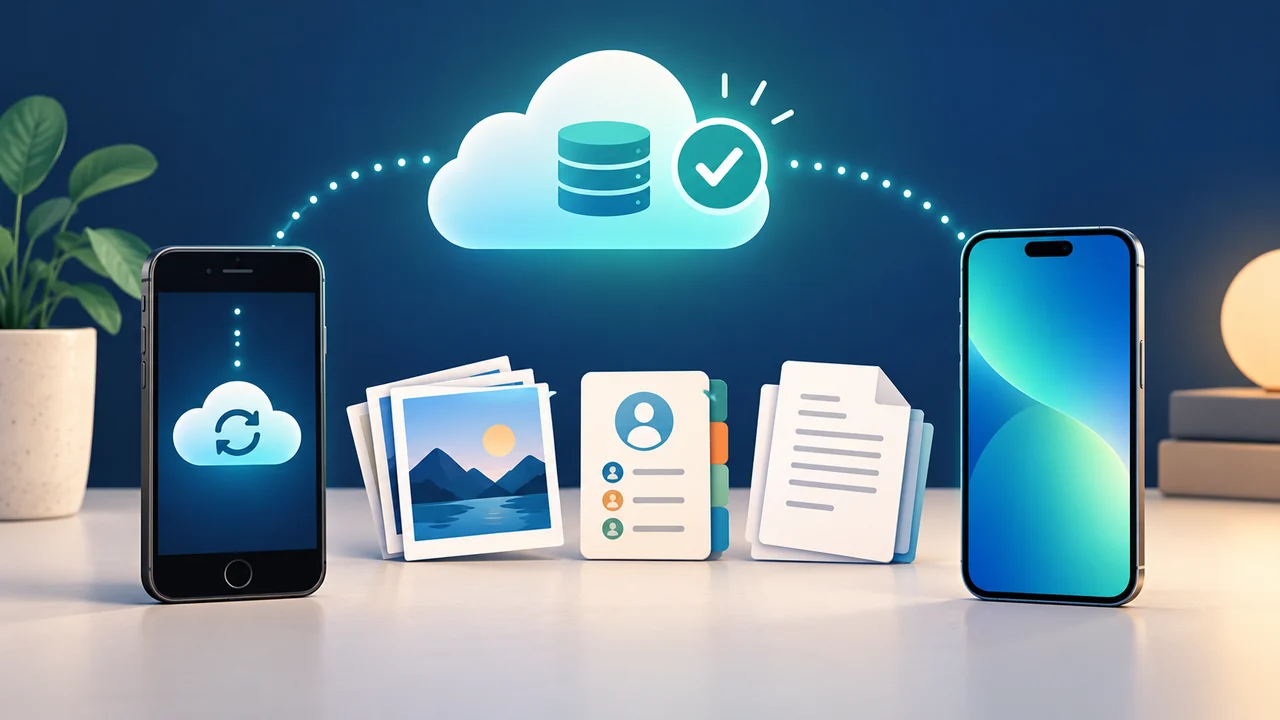
Quick Start can configure a new iPhone from the previous one while the devices are nearby and you follow the on-screen instructions. The process can transfer data directly or set up the new phone from an iCloud backup. For a computer backup, Apple describes using Finder or the Apple Devices app, depending on the computer.
A transfer may take time. Keep both phones powered and connected to the network required by the setup. Check photos, contacts, messages, apps and files on the new iPhone. Some apps still require a fresh sign-in or their own setup; data stored only on the device is not necessarily part of a cloud backup.
Moving from Android to iPhone, or from iPhone to Android
For Android to iPhone, Apple’s Move to iOS app can transfer several categories during new iPhone setup. For iPhone to Android, Google provides a guided process and a list of transferable items. In either direction, the route and data categories depend on software versions, cable or wireless connection, device model and where you are in setup.
Contacts, photos and calendars may follow a different path from apps, purchases, protected content, files and chat histories. Check the current list for your exact device and do not wipe the new phone’s setup until you have verified what matters to you.
Chats, authenticator apps and credentials need separate checks
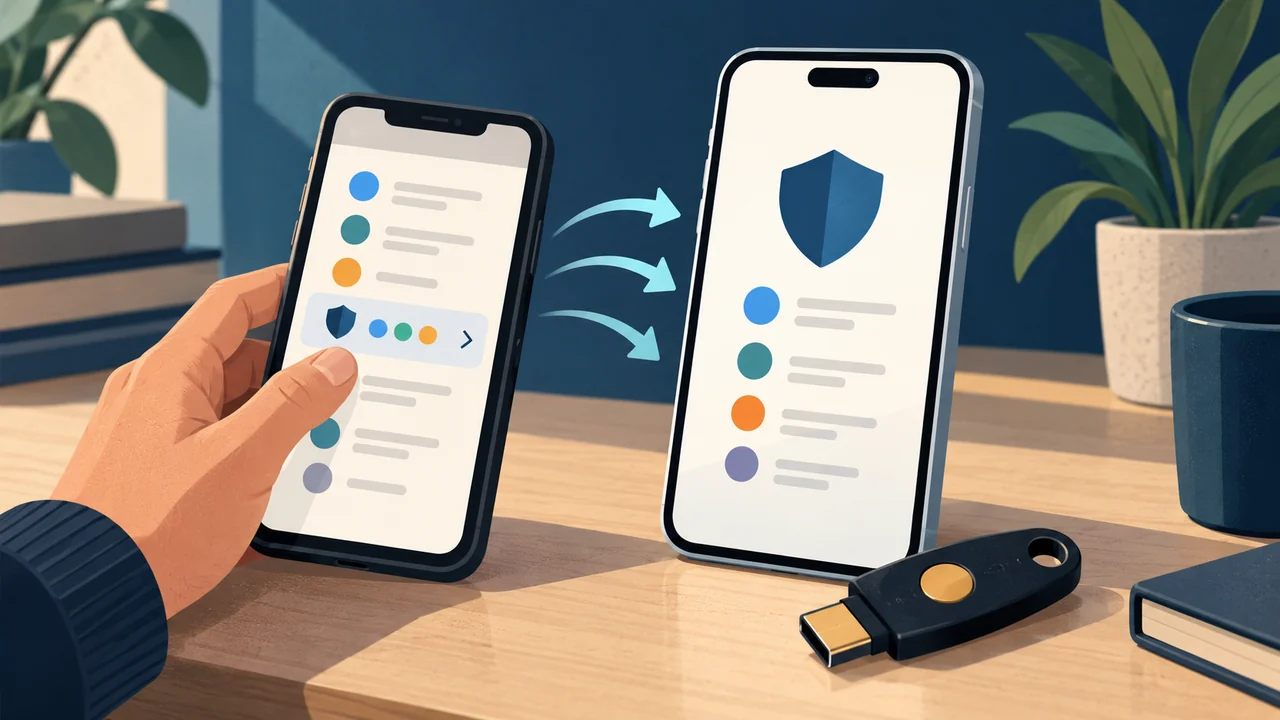
Chat histories do not always follow the general phone backup. WhatsApp publishes a separate chat-transfer process: check compatibility, accounts and requirements for the specific pair of phones, and start the transfer in the app before erasing the old device.
Two-step verification apps also need attention. Google Authenticator can sync codes with a Google Account or transfer them manually using its dedicated function. Confirm that the codes are visible on the new phone before removing the app from the old one. For other authenticator apps, follow that provider’s transfer and account-recovery instructions.
Passwords, passkeys and recovery options may depend on a credential manager or synced account. Before switching, confirm how to access your vault and keep an alternative way to recover the account. Our guide to password managers covers the points to consider.
Keep the old phone until you have checked the new one
On the new device, check at least:
- Contacts, calendar and recent photos.
- Documents, folders and downloads you need.
- Chat history and attachments.
- Access to email, banking, authentication and your password manager.
- Calls, text messages, SIM or eSIM and essential apps.
- Backup completion and account-recovery methods.
Only after these checks, and after following the manufacturer’s sign-out and reset instructions, should you erase the old phone. If you give it away or sell it, remove your accounts and turn off activation locks using the official steps. Keeping it for a few days after the transfer gives you a practical way to retrieve anything you missed.
Sources
- Google — Copy apps and data from an Android device
- Google — Switch from iPhone to Android
- Apple — Use Quick Start to transfer data to a new iPhone or iPad
- Apple — Transfer data from a previous device to a new iPhone or iPad
- Apple — Move from Android to iPhone with Move to iOS
- Google — Transfer Google Authenticator codes
- WhatsApp — Transfer chat history
- Apple — Back up iPhone
Comments
Comments
Join the discussion respectfully: reasoned criticism is welcome; avoid threats, abuse, personal data and promotional links.
To join the discussion, you'll need to sign in with your WordPress.com account. This feature will be available when the site launches.