

Apps should access your camera, microphone, location or photos only when that access is needed for a feature you want to use. Reviewing permissions from time to time helps remove access you no longer need. But denying everything without considering the context can break a legitimate feature, such as a video call or turn-by-turn navigation.
What does a permission actually allow?
A permission lets an app access a category of data or a device feature. By itself, it does not tell you what the app will do with that information afterwards. The developer, privacy notice and the service’s own settings still matter.
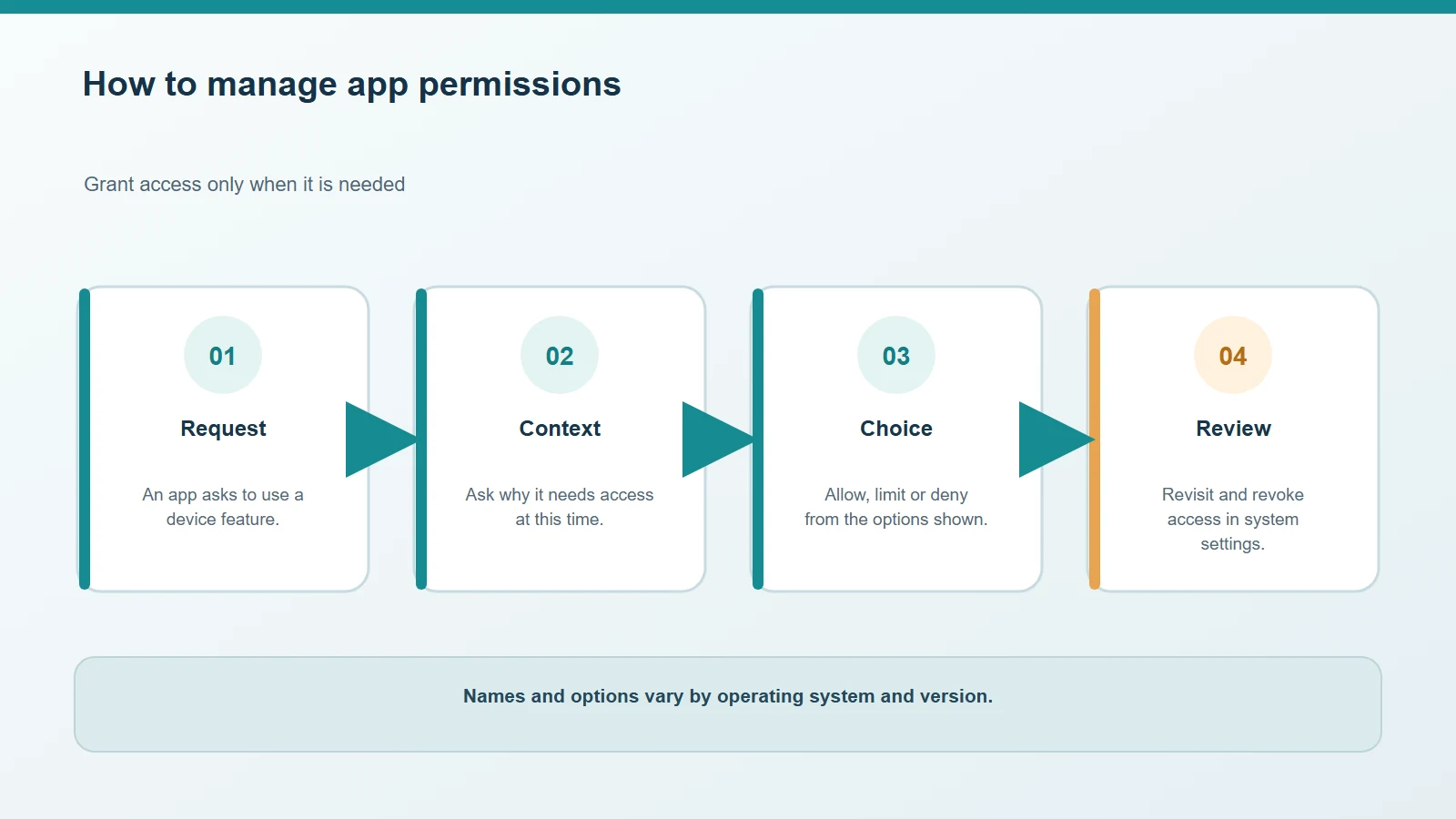
Grant access when a feature needs it, then review it if your needs change.
Android generally asks for dangerous permissions when an app needs them, rather than granting access simply because you installed it. The options shown depend on the system version and permission type. For example, on Android 12 and later, a user can grant only approximate location to an app that requests precise location. Android Developers — Request runtime permissions, Android Developers — Location permissions.
On iPhone, apps must ask before they use features such as the camera or microphone. You can review and change access requested by apps under Settings > Privacy & Security; a green indicator shows camera use and an orange one shows microphone use. Apple — Control access to hardware features.
How to choose without breaking a feature
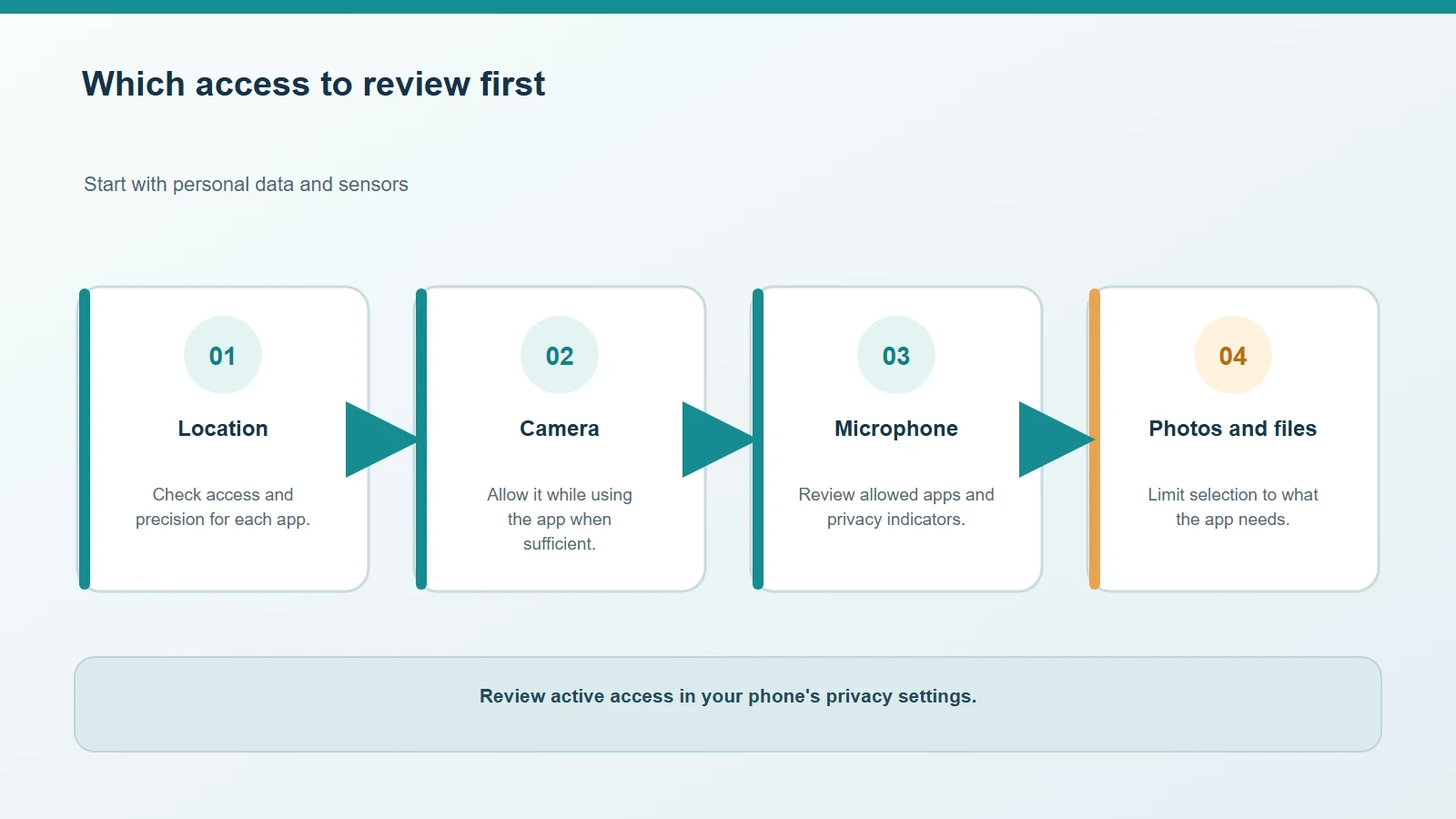
The appropriate choice depends on the permission, app and operating system version.
- Location: a weather app may only need an approximate area; turn-by-turn navigation may need precise location while the app is in use. If an app wants background access, consider whether its feature requires it.
- Camera and microphone: allow access when you use a feature that needs them, such as scanning or a call. Revoke access in settings if you no longer need it.
- Photos and files: if the system offers a limited selection, choose only the items you want to share instead of the entire library.
- Bluetooth or local network: an app may need these to connect to headphones, smart-home devices or accessories; check which feature you are setting up.
Menu names and paths can differ between Android and iPhone versions and manufacturers. If you deny a permission and a feature stops working, you can return to settings and grant access; reinstalling the app is not normally necessary.
A practical review in a few minutes
Open the Privacy section in Settings and review one category at a time, starting with location, camera, microphone and photos. For each app, ask: do I still use it? Does this feature really need those data? Does it need to work while the app is closed? If the answer is unclear, check the developer’s explanation and choose the narrowest option that still supports your use.
For location on iPhone, Apple lets you choose whether to share your precise location or only an approximate one; change this for each app under Settings > Privacy & Security > Location Services. Android 12 and later offer a similar choice for apps that request precise location. Apple — Privacy and Location Services, Android Developers — Location permissions.
Reviewing permissions is a useful habit, not a complete privacy guarantee. Consider your account, the information you enter and the app’s privacy notice too. For wider everyday security habits, see our guide to protecting your computer.



Comments
Comments
Join the discussion respectfully: reasoned criticism is welcome; avoid threats, abuse, personal data and promotional links.
To join the discussion, you'll need to sign in with your WordPress.com account. This feature will be available when the site launches.