
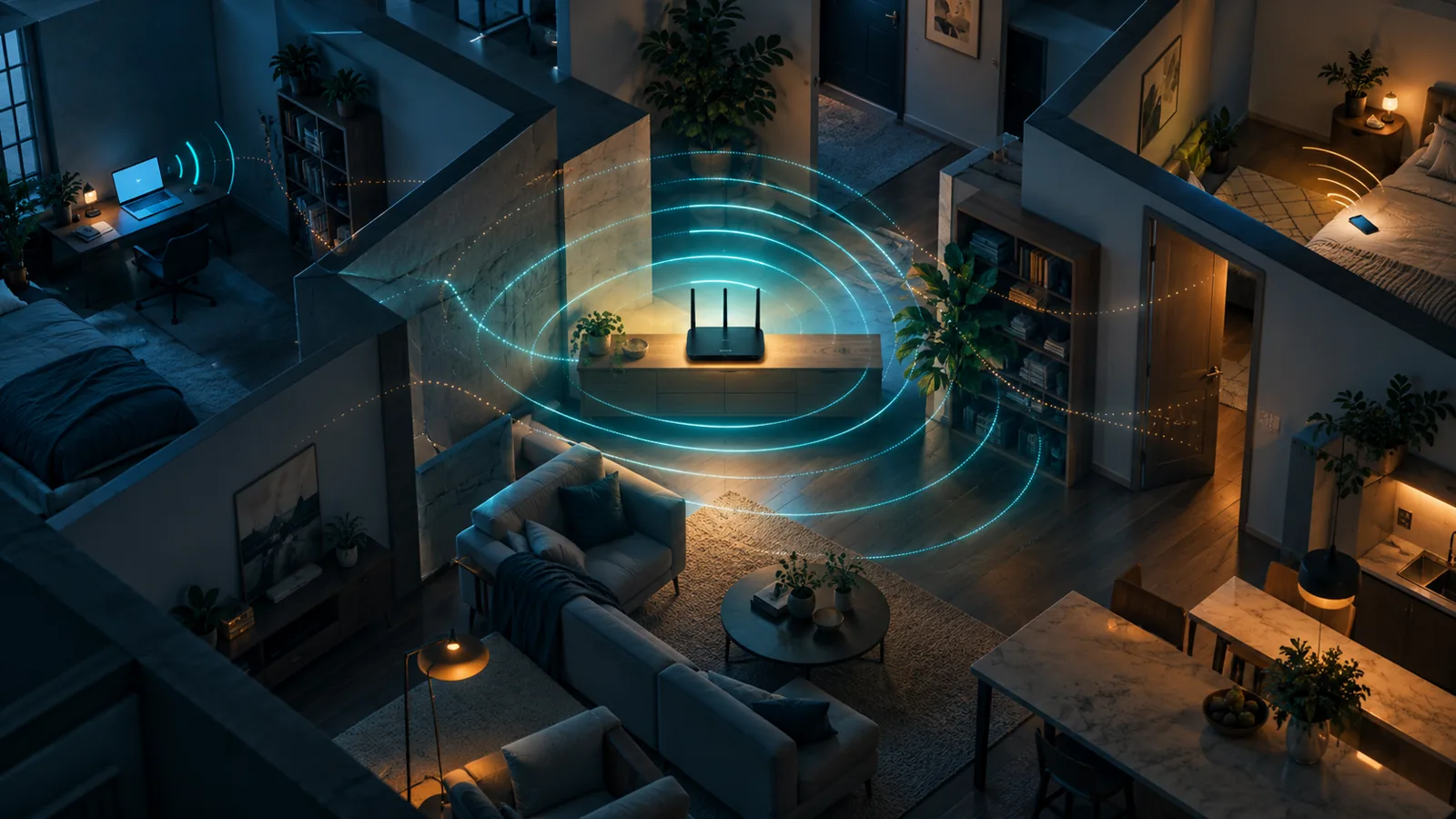
Slow Wi-Fi does not automatically mean you need a new router or a more expensive broadband plan. First work out where the slowdown happens: on every device or just one, throughout the home or in one particular room. A wired comparison and checks in different places can help separate a broadband limit from poor coverage, interference or a device issue.
Start with a simple comparison
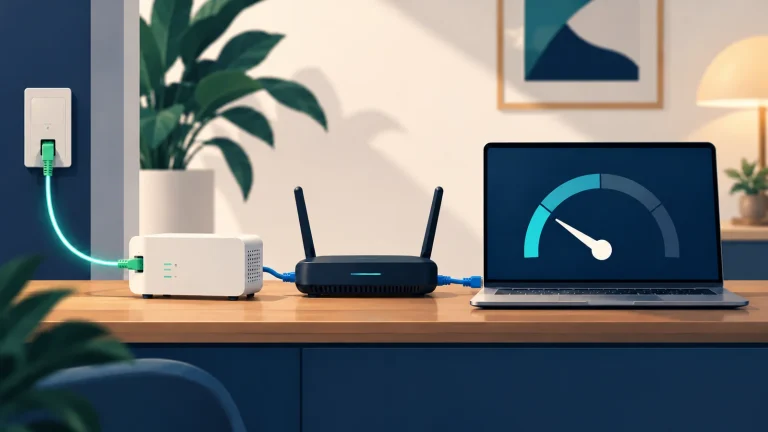
If possible, connect the same computer to the router with an Ethernet cable and compare that result with Wi-Fi. Repeat at different times and, for wireless, in more than one room: a single measurement can also be affected by network traffic, the test service and other activity on the connection. You do not need to chase the biggest number; note whether the problem is downloads, video calls or dropouts.
If the wired connection is also slow, the cause could be the provider’s line, the modem-router or other devices using the connection. If Ethernet is better but Wi-Fi gets worse as you move away, signal strength or coverage is a more likely issue. If only one phone or laptop struggles, check its updates, wireless adapter, VPN and active apps too. If your computer has an Ethernet port, comparing the same device over cable and Wi-Fi can help show whether the slowdown is mainly on the wireless side.
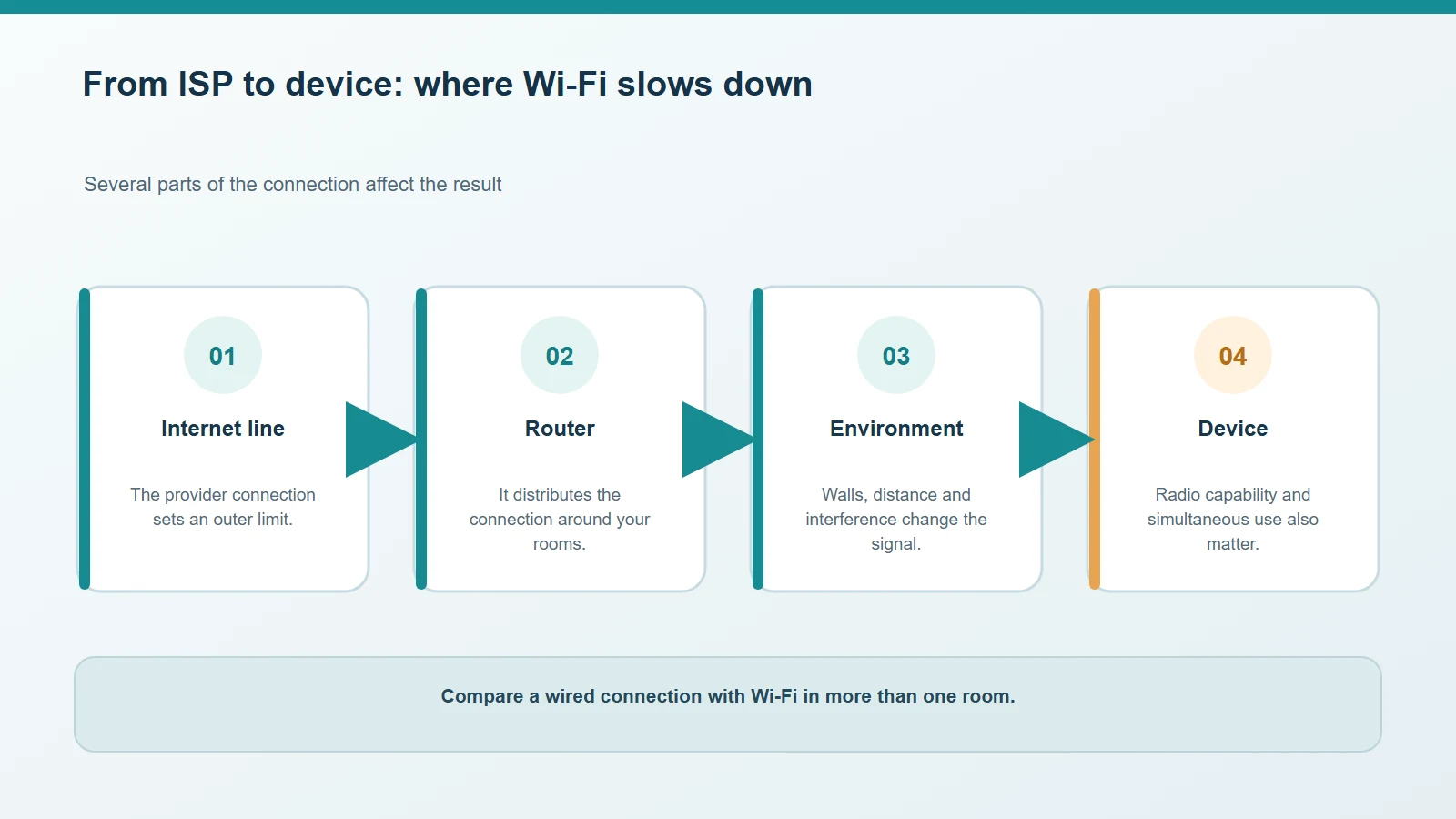
The line, router, home layout and device all contribute to the connection you experience.
Router placement makes a difference
Wi-Fi loses strength as it passes through walls, floors and some objects. A router inside a cabinet, behind a television, on the floor or tucked into a corner can leave weak spots. When practical, placing it in an open, fairly central and elevated position reduces obstacles between the router and your devices. Metal objects and some electrical equipment can add interference.
A mesh system or extender can bring Wi-Fi to a room with weak coverage, but it cannot increase the speed supplied by your broadband provider. The position of a mesh node matters too: if it is already in a spot with a very weak signal, it has little useful coverage to extend. Before buying equipment, try moving the router temporarily and compare rooms.
2.4, 5 or 6 GHz: which band should you use?
The bands are not simply “slow” and “fast” versions of the same thing. In general, 2.4 GHz reaches farther and passes through obstacles more effectively, but has less capacity and may be more crowded. The 5 GHz band can transfer more data near the router, but loses more signal through walls. 6 GHz can offer strong performance nearby, but both router and device need to support it, and its range is shorter. Microsoft’s guide to Wi-Fi bands and home layout.
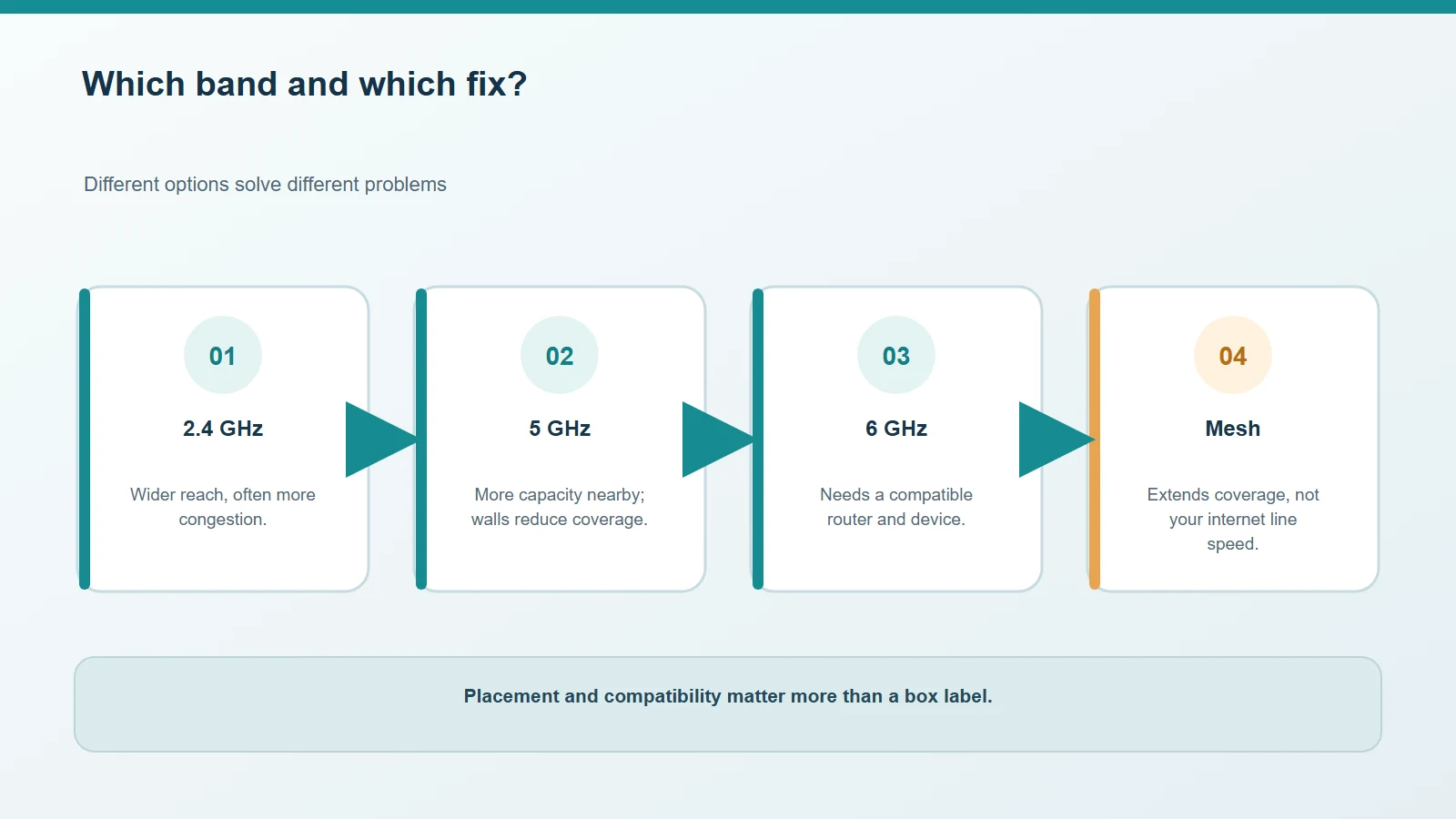
The best band depends on the room, device and interference around it.
Some networks show one name while using several bands; on Windows, the system automatically connects to the best band available. If your router shows separate network names, you can choose the one that suits the room, provided your device supports it.
When is it worth changing something?
If Ethernet works well and the slowdown depends on distance, start with router placement or coverage. If only one device is affected, troubleshoot that device before replacing the router. If the wired connection remains slow at different times, contact your provider and compare your observations with the speed promised by your plan.
Mesh can improve Wi-Fi distribution around the home; a faster broadband plan helps only when the provider’s connection is the bottleneck. For a closer look at router standards and bands, see our guide to Wi-Fi 6, 6E and Wi-Fi 7.

Comments
Comments
Join the discussion respectfully: reasoned criticism is welcome; avoid threats, abuse, personal data and promotional links.
To join the discussion, you'll need to sign in with your WordPress.com account. This feature will be available when the site launches.